方舟笔记

方舟笔记

在Linux上启用SSH登录email通知

在Linux上启用SSH登录email通知
在CentOS, Ubuntu/Debian 启用SSH登录邮件通知
Linux服务器或LinuxVPS通常需要远程登录访问,尤其是当服务器或VPS还允许root 直接登录时,应该为SSH 登录成功配置一个自动的email提醒。

把下面的YOUR_EMAIL_ADDRES更改为你要接收登录通知的电子邮件地址。sendmail直接发送的话很可能会发送到垃圾邮箱里,如果仅仅是为了接收这样的提醒的话,只需要把地址加入到白名单就行了。

CentOS

vim ~/.bash_profile //添加下面的配置

IP="$(echo $SSH_CONNECTION | cut -d " " -f 1)"
HOSTNAME=$(hostname)
NOW=$(date +"%e %b %Y, %a %r")

echo 'Someone from '$IP' logged into '$HOSTNAME' on '$NOW'.' | mail -s 'SSH Login Notification' YOUR_EMAIL_ADDRESS

Ubuntu/Debian

vim ~/.bashrc //添加下面的配置

IP="$(echo $SSH_CONNECTION | cut -d " " -f 1)"
HOSTNAME=$(hostname)
NOW=$(date +"%e %b %Y, %a %r")

echo 'Someone from '$IP' logged into '$HOSTNAME' on '$NOW'.' | mail -s 'SSH Login Notification' YOUR_EMAIL_ADDRESS

如果不想接收到邮箱,只想重定向到一个文件的话。
IP="$(echo $SSH_CONNECTION | cut -d " " -f 1)"
HOSTNAME=$(hostname)
NOW=$(date +"%e %b %Y, %a %r")

echo 'Someone from '$IP' logged into '$HOSTNAME' on '$NOW'.' >>/root/login.txt

完成

CentOS 6, Debian, Ubuntu, CentOS 7, FreeBSD, CoreOS, 进入单用户模式(重新设置root密码),单用户模式修改密码

CentOS 6, Debian, Ubuntu, CentOS 7, FreeBSD, CoreOS, 进入单用户模式(重新设置root密码),单用户模式修改密码
CentOS 6, Debian, Ubuntu, CentOS 7, FreeBSD, CoreOS, 进入单用户模式修改密码

To reset the root password of your server, you will need to boot into single user mode.要重置您的服务器的root密码,您将需要引导进入单用户模式。

Access the Manage section of your server in the customer portal and follow these steps. The option depends on the bootloader version on the machine:

CentOS 6 进入单用户模式修改密码

  1. Click [View Console] to access the console and click the send CTRL+ALT+DEL button on the top right. Alternatively, you can also click [RESTART] to restart the server.
  2. You will see a GRUB boot prompt telling you to press any key - you have only a few seconds to press a key to stop the automated booting process. (If you miss this prompt you will need to restart the VM again)
  3. At the GRUB prompt, type "a" to append to the boot command.
  4. Add the text "single" and press enter.
  5. System will boot and you will see the root prompt. Type "passwd" to change the root-password and then reboot again.

Debian, Ubuntu, CentOS 7 进入单用户模式修改密码

  1. Click [View Console] to access the console and click the send CTRL+ALT+DEL button on the top right. Alternatively, you can also click [RESTART] to restart the server.
  2. As soon as the boot process starts, press ESC to bring up the GRUB boot prompt. You may need to turn the system off from the control panel and then back on to reach the GRUB boot prompt.
  3. You will see a GRUB boot prompt - press "e" to edit the first boot option. (If you do not see the GRUB prompt, you may need to press any key to bring it up before the machine boots)
  4. Find the kernel line (starts with "linux /boot/") and add init="/bin/bash" at the end of the line
  5. Press CTRL-X or F10 to boot.
  6. System will boot and you will see the root prompt. Type "mount -rw -o remount /" and then "passwd" to change the root password and then reboot again.

FreeBSD 进入单用户模式修改密码

The boot menu has an option to boot into single-user mode. Press the key for single user mode (2). At the root prompt, type "passwd" to change the root password and then reboot again.

CoreOS 进入单用户模式修改密码

CoreOS by default uses SSH key authentication. On Vultr, a root user and password are created. If an SSH key is selected when creating the VPS, this SSH key can be used to login as user "core".

It is possible to reset the standard root login by executing "sudo passwd" as user "core". Login as "core" using the SSH key first.

If you lost your SSH key, then you can login as the "core" user by editing the grub loader. Follow these steps:

  1. Click [View Console] to access the console and click the send CTRL+ALT+DEL button on the top right. Alternatively, you can also click [RESTART] to restart the server.
  2. You will see a GRUB boot prompt - press "e" to edit the first boot option. (If you do not see the GRUB prompt, you may need to press any key to bring it up before the machine boots)
  3. At the end of the line that begins with "linux$" add " coreos.autologin=tty1" (no quotes).
  4. Press CTRL-X or F10 to boot. You will be logged in as "core" when the system boots.
  5. Remember to reboot your server after you have reset your login.

完成

多用户,多(种\个)密钥,SSH 密钥登录linux服务器

接上文 Linux服务器采用密钥认证登录
多用户,多(种\个)密钥,SSH 密钥登录linux服务器
多用户,多种密钥算法(rsa\dsa),SSH 私钥登录linux(Red Hat \ CentOS \ Fedora \ Debian \ Ubuntu) 服务器
multi-user, multi-key (rsa \ dsa), private key ssh login linux server (Red Hat \ CentOS \ Fedora \ Debian \ Ubuntu)
使用密钥验证登录
基于密钥的安全验证必须为用户自己创建一对密钥,但是一台服务器上不可能只有一个用户,算法和强度也不会只有一种。

1:用户,假如一台服务器上有有两个用户root和demo
root //提前生成了两对rsa算法密钥
#ssh-keygen -t rsa -b 2048
#ssh-keygen -t rsa -b 16384 //rsa 最大位数16384

demo //demo 先使用dsa算法密钥,然后在使用rsa算法密钥,然后放到一起authorized_keys
$ssh-keygen -t dsa -b 1024 //dsa 位数必须是1024

2:dsa算法密钥SSH登录
ssh-keygen -t dsa -b 1024 //DSA keys must be 1024 bits
Generating public/private dsa key pair.
Enter file in which to save the key (/home/demo/.ssh/id_dsa):
Enter passphrase (empty for no passphrase):
Enter same passphrase again:
Your identification has been saved in /home/demo/.ssh/id_dsa.
Your public key has been saved in /home/demo/.ssh/id_dsa.pub.
The key fingerprint is:

demo
$cat ~/.ssh/id_dsa.pub>>~/.ssh/authorized_keys
#chmod 700 .ssh
#chmod 600 ~/.ssh/authorized_keys //不然Xshell 会提示 所选的用户密钥未在远程主机上注册。请再试一次。
//or willnotice The selected user key is not registered in the remote host.Try again.

3:rsa算法密钥SSH登录
$ssh-keygen -t rsa -b 2048 //最大值16384
Generating public/private rsa key pair.
Enter file in which to save the key (/home/demo/.ssh/id_rsa):
Enter passphrase (empty for no passphrase):
Enter same passphrase again:
Your identification has been saved in /home/demo/.ssh/id_rsa.
Your public key has been saved in /home/demo/.ssh/id_rsa.pub.

demo
$cat ~/.ssh/id_rsa.pub>>~/.ssh/authorized_keys
#chmod 700 .ssh
#chmod 600 ~/.ssh/authorized_keys //不然Xshell 会提示 所选的用户密钥未在远程主机上注册。请再试一次。
//or willnotice The selected user key is not registered in the remote host.Try again.

4:多个密钥,多种密钥SSH登录
多密钥,只需要把公钥追加到authorized_keys
cat ~/.ssh/id_rsa.pub>>~/.ssh/authorized_keys

其他相关信息
ecdsa Xshell PUTTY还不支持,密钥认证是针对每个用户的。

-t type
Specifies the type of key to create. The possible values are
“rsa1” for protocol version 1 and “dsa”, “ecdsa”, “ed25519”, or
“rsa” for protocol version 2.
-b bits
Specifies the number of bits in the key tocreate. For RSA keys, the minimum size is 768 bits and
the default is 2048 bits. Generally,2048 bits is considered sufficient. DSA keys must be exactly
1024 bits as specified by FIPS 186-2. ForECDSA keys, the -b flag determines the key length by
selecting from one of three elliptic curvesizes: 256, 384 or 521 bits. Attempting to use bit lengths
other than these three values for ECDSA keyswill fail. ED25519 keys have a fixedlength and the
-b flag will be ignored.

ssh-keygen -t rsa -b 2048 //ssh-keygen -t rsa -b 65536,key bits exceeds maximum 16384
Bits has bad value 65536 (too large)
ssh-keygen -t rsa -b 16384
id_rsa
id_rsa.pub

ssh-keygen -t dsa -b 1024 //DSA keys must be 1024 bits
id_dsa
id_dsa.pub

ssh-keygen -t ecdsa -b 521
id_ecdsa
id_ecdsa.pub

ECDSA(椭圆曲线签名算法)
RSA公钥加密算法
DSA

结束
rsa

dsa

CentOS 6.x下安装(RPM和编译)aria2

CentOS 6.x下安装(RPM和编译)aria2
aria2 是一款 Linux 下轻量级的多线程下载工具,支持Http/Https、Ftp、BitTorrent、Metalink协议。
官网地址:http://aria2.sourceforge.net ,首页有简略使用教程(Usage Examples)
repo 里没有 aria2 ,因此需要到 http://pkgs.repoforge.org/aria2/ 去下载 rpm 包安装即可。

CentOS 6.x 32 位下安装
wget -c http://pkgs.repoforge.org/aria2/aria2-1.16.4-1.el6.rf.i686.rpm
rpm -ivh aria2-1.16.4-1.el6.rf.i686.rpm

CentOS 6.x 64 位下安装
wget -c http://pkgs.repoforge.org/aria2/aria2-1.16.4-1.el6.rf.x86_64.rpm
rpm -ivh aria2-1.16.4-1.el6.rf.x86_64.rpm

在安装过程有可能会出现缺少 libnettle.so.4 的错误提示。
因此需要先到 http://pkgs.repoforge.org/nettle/ 去下载安装 nettle 即可。
CentOS 6.x 32 位下安装
wget -c http://pkgs.repoforge.org/nettle/nettle-2.2-1.el6.rf.i686.rpm
wget -c http://pkgs.repoforge.org/nettle/nettle-devel-2.2-1.el6.rf.i686.rpm
rpm -ivh nettle-2.2-1.el6.rf.i686.rpm
rpm -ivh nettle-devel-2.2-1.el6.rf.i686.rpm

CentOS 6.x 64 位下安装
wget -c http://pkgs.repoforge.org/nettle/nettle-2.2-1.el6.rf.x86_64.rpm
wget -c http://pkgs.repoforge.org/nettle/nettle-devel-2.2-1.el6.rf.x86_64.rpm
rpm -ivh nettle-2.2-1.el6.rf.x86_64.rpm
rpm -ivh nettle-devel-2.2-1.el6.rf.x86_64.rpm

编译安装aria2
wget http://iweb.dl.sourceforge.net/project/aria2/stable/aria2-1.19.0/aria2-1.19.0.tar.gz
tar zxvf aria2-1.19.0.tar.gz
cd aria2-1.19.0
./configure
make
make install

man aria2c //查看 aria2c manual

aria2c http://cachefly.cachefly.net/100mb.test && rm -f 100mb.test
aria2c -c http://a/f.iso ftp://b/f.iso //-c 选项可以断点续传文件
aria2c http://example.org/mylinux.torrent
aria2c 'BitTorrent Magnet URI' -d test/ //-d test/是指明下载文件保存在test目录
aria2c http://example.org/mylinux.metalink
aria2c -i uris.txt //Download URIs found in text file

完成

Red Hat Enterprise Linux7.x(RHEL7.x)更换CentOS YUM源

Red Hat Enterprise Linux7.x(RHEL7.x)更换CentOS YUM源
Red Hat Enterprise Linux7.x(RHEL7.x) change CentOS YUM repository
Red Hat Enterprise Linux 7.1.1503(RHEL 7.1.1503)更换CentOS YUM源
由于RHEL的yum在线更新是收费的,RedHat在没有订阅授权的情况下是不能通过yum下载任何软件的,想使用RHEL系统,还想用yum源来在线安装软件,就需要更换成CentOS YUM源。
#cat /etc/redhat-release //查看版本
Red Hat Enterprise Linux Server release 7.1 (Maipo)

1、删除RHEL原有的yum
rpm -aq|grep yum|xargs rpm -e --nodeps //删除RHEL原有的yum
sudo rpm -ivh http://mirrors.ustc.edu.cn/centos/7.1.1503/os/x86_64/Packages/wget-1.14-10.el7_0.1.x86_64.rpm //安装wget

2、安装CentOS的yum
下载
wget http://mirrors.ustc.edu.cn/centos/7.1.1503/os/x86_64/Packages/python-iniparse-0.4-9.el7.noarch.rpm
wget http://mirrors.ustc.edu.cn/centos/7.1.1503/os/x86_64/Packages/yum-metadata-parser-1.1.4-10.el7.x86_64.rpm
wget http://mirrors.ustc.edu.cn/centos/7.1.1503/os/x86_64/Packages/yum-3.4.3-125.el7.centos.noarch.rpm
wget http://mirrors.ustc.edu.cn/centos/7.1.1503/os/x86_64/Packages/yum-plugin-fastestmirror-1.1.31-29.el7.noarch.rpm
安装
rpm -ivh python-iniparse-0.4-9.el7.noarch.rpm
rpm -ivh yum-metadata-parser-1.1.4-10.el7.x86_64.rpm
rpm -ivh yum-3.4.3-125.el7.centos.noarch.rpm yum-plugin-fastestmirror-1.1.31-29.el7.noarch.rpm

3、下载源文件(CentOS 7)
https://lug.ustc.edu.cn/wiki/mirrors/help/centos //下载页面,根据需要进行下载

4、编辑源文件 CentOS-Base.repo

$releasever 替换成相应的版本号
$basearch 替换成想要的系统位数
编辑源文件 CentOS-Base.repo
http://mirrors.ustc.edu.cn/centos/7.1.1503/ //$releasever替换为7.1.1503 $basearch替换为x86_64,建议国内用户使用
http://mirror.vtti.vt.edu/centos/7.1.1503/ //$releasever替换为7.1.1503 $basearch替换为x86_64,建议国外用户使用

5、导入GPG key
sudo rpm --import http://mirrors.ustc.edu.cn/centos/RPM-GPG-KEY-CentOS-7 //导入GPG key
sudo rpm --import http://mirror.vtti.vt.edu/centos/RPM-GPG-KEY-CentOS-7 //导入GPG key

6、安装扩展源
yum -y install epel-release //安装 Extra Packages for Enterprise Linux (EPEL)
yum clean all //清除YUM缓存
yum makecache //创建YUM缓存
yum repolist all //列出全部repository列表

http://mirrorlist.centos.org/?release=7.1.1503&arch=x86_64&repo=os
发现最适合自己的源
完成

VMware Workstation 16 Pro

对于在隔离的安全虚拟化环境中评估新的操作系统、软件应用和补丁程序以及参考体系结构而言,是最轻松、快速和可靠的方法。没有任何其他桌面虚拟化软件能够提供与 Workstation Pro 相媲美的性能、可靠性和领先的功能特性。

VMware Workstation 12 Pro

VMware Workstation 12 Pro 下载地址

VMware Workstation 12 Pro for Windows(64 位)
VMware Workstation 12 Pro for Linux(64 位)


VMware Workstation 15.5 Pro

支持连接到vSphere 6.7。
支持将本地虚拟机上载到vSphere 6.7。
支持将在vSphere 6.7上运行的远程虚拟机下载到本地桌面。

VMware Workstation 15.5 Pro 下载地址

VMware Workstation 15.5 Pro for Windows(64 位)下载
VMware Workstation 15.5 Pro for Linux (64 位)下载


VMware Workstation 16 Pro

支持连接到vSphere 7.0。
支持将本地虚拟机上载到vSphere 7.0。
支持将在vSphere 7.0上运行的远程虚拟机下载到本地桌面。
支持Linux主机上的Intel GPU的3D支持,以使用Vulkan渲染器向VM提供DirectX 10.1和OpenGL 3.3。

VMware Workstation 16 Pro 下载地址

Workstation 16 Pro for Windows(64 位)下载
Workstation 16 Pro for Linux (64 位)下载

VMware Workstation 12 Pro key

5A02H-AU243-TZJ49-GTC7K-3C61N
AG7H2-66Y80-M81HP-1MQZZ-ZZREA
GG78H-4ZDE0-0887Z-A6ZQT-QARDD
VF74R-DJD43-080TP-Y5YNZ-MAHE2

VMware Workstation 15 Pro key

UY758-0RXEQ-M81WP-8ZM7Z-Y3HDA
VF750-4MX5Q-488DQ-9WZE9-ZY2D6
UU54R-FVD91-488PP-7NNGC-ZFAX6
YC74H-FGF92-081VZ-R5QNG-P6RY4

VMware Workstation 16 Pro key

ZF3R0-FHED2-M80TY-8QYGC-NPKYF
YF390-0HF8P-M81RQ-2DXQE-M2UT6
ZF71R-DMX85-08DQY-8YMNC-PPHV8

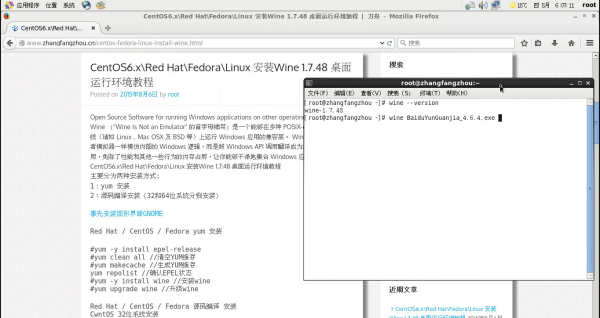
CentOS6.x\Red Hat\Fedora\Linux 安装Wine 1.7.48 桌面运行环境教程

Open Source Software for running Windows applications on other operating systems
Wine (“Wine Is Not an Emulator” 的首字母缩写)是一个能够在多种 POSIX-compliant 操作系统(诸如 Linux,Mac OSX 及 BSD 等)上运行 Windows 应用的兼容层。 Wine 不是像虚拟机或者模拟器一样模仿内部的 Windows 逻辑,而是將 Windows API 调用翻译成为动态的 POSIX 调用,免除了性能和其他一些行为的内存占用,让你能够干净地集合 Windows 应用到你的桌面。
CentOS6.x\Red Hat\Fedora\Linux 安装Wine 1.7.48 桌面运行环境教程
主要分为两种安装方式:
1:yum 安装
2:源码编译安装(32和64位系统分别安装)

事先安装图形界面GNOME

Red Hat / CentOS / Fedora yum 安装

#yum -y install epel-release
#yum clean all //清空YUM缓存
#yum makecache //生成YUM缓存
yum repolist //确认EPEL状态
#yum -y install wine //安装wine
#yum upgrade wine //升级wine

Red Hat / CentOS / Fedora 源码编译 安装
CwntOS 32位系统安装

#yum -y install wget gcc make vim screen bzip2-devel epel-release zlib-devel libxcb-devel
#yum groupinstall "Development tools" -y
#yum clean all //清空YUM缓存
#yum makecache //生成YUM缓存
#yum repolist //确认EPEL状态
#yum -y update
#reboot
#wget http://nchc.dl.sourceforge.net/project/wine/Source/wine-1.7.48.tar.bz2 //下载wine
#tar -jxvf wine-1.7.48.tar.bz2 //解压
#cd wine-1.7.48
#./configure

configure: error: X development files not found. Wine will be built
#yum -y install libX11-devel freetype-devel
#./configure //配置
#make //编译
#make install //安装
#wine xxx.exe //运行32位软件

CentOS 64位系统安装

#yum groupinstall "Development tools" -y
#yum -y install wget gcc make vim screen bzip2-devel epel-release zlib-devel libxcb-devel
#yum -y update
#reboot
#wget http://nchc.dl.sourceforge.net/project/wine/Source/wine-1.7.48.tar.bz2 //下载wine
#tar -jxvf wine-1.7.48.tar.bz2 //解压
#cd wine-1.7.48
#./configure

configure: error: Cannot build a 32-bit program, you need to install 32-bit development libraries.

#./configure --enable-win64 //配置
configure: Finished. Do 'make' to compile Wine.

configure: error: X development files not found. Wine will be built

#yum -y install libX11-devel
#./configure --enable-win64

configure: error: FreeType development files not found. Fonts will not be built.
Use the --without-freetype option if you really want this.
#yum -y install freetype-devel
#./configure --enable-win64
configure: Finished. Do 'make' to compile Wine.
#make //编译
Wine build complete.
#make install //安装
#wine64 xxx.exe //运行64位软件
完成

linux的NetworkManager服务

linux (CentOS)配置IP地址信息,重启后网络配置失效。
经多次查找发现这种是NetworkManager的问题,NetworkManager试图将DHCP中获取的DNS信息写入/etc/resolv.conf,导致原文件被覆盖,
打开/etc/resolv.conf文件 会发现 Crate by networkmanager。

1:在配置文件添加 PEERDNS=no 这个选项可令/etc/resolv.conf 在系统重启后不会被重写,
重新启动后仍任被NetworkManager 重新创建了/etc/resolv.conf,该方法无效。

2:在文件属性中设置i参数避免文件被修改
#chattr +i /etc/resolv.conf

#chattr -i /etc/resolv.conf //如果你要修改此文件,移除i参数
重新启动后仍任被NetworkManager 重新创建了/etc/resolv.conf,该方法无效。

3:关闭该服务。
service NetworkManager stop 临时关闭:
chkconfig NetworkManager off 永久关闭:

关闭后正常

网络管理器最初由 Redhat 公司开发,现在由 GNOME 管理。

为CentOS 6.x安装图形界面GNOME