CentOS6.x 安装升级Python2.7.x Python3.4.x

CentOS release 6.6 (Final) 安装升级Python2.7.7 Python2.7.9 Python3.4.3

1、查看当前系统中的python版本
#python --version 或 python -V
Python 2.6.6

2、检查CentOS版本
#cat /etc/redhat-release

3、安装所有的开发工具包
#yum groupinstall "Development tools" -y

4、安装其它的必需包
#yum install zlib-devel bzip2-devel openssl-devel ncurses-devel -y

5、下载、编译和安装Python2.7.7
cd /opt
wget https://www.python.org/ftp/python/2.7.7/Python-2.7.7.tgz
tar zxvf Python-2.7.7.tgz
cd Python-2.7.7
./configure
make install

5、下载、编译和安装Python3.4.3
cd /opt
wget https://www.python.org/ftp/python/3.4.3/Python-3.4.3.tgz
tar zxvf Python-3.4.3.tgz
cd Python-3.4.3
./configure
make install

6、查看Python版本。
用以下命令查看Python2.7是否已安装

#python2.7 --version
Python 2.7.7

用以下命令查看Python3.4是否已安装
#python3.4 --version
Python 3.4.3

7、更新系统默认Python和python-config版本(可选)
没必要的话最好不进行这项操作(可能会产生关联错误),建议使用python2 或者python3 代替。
先查找python的位置
#whereis python
python: /usr/bin/python2.6-config /usr/bin/python /usr/bin/python2.6 /usr/lib/python2.6 /usr/lib64/python2.6 /usr/local/bin/python3.4m
/usr/local/bin/python3.4-config /usr/local/bin/python3.4 /usr/local/bin/python3.4m-config /usr/local/lib/python3.4 /usr/include/python2.6
/usr/share/man/man1/python.1.gz

cd /usr/bin
rm python
rm python-config
ln -s /usr/local/bin/python3.4 /usr/bin/python //创建一个软连接
ln -s /usr/local/bin/python3.4m-config /usr/bin/python-config //创建一个软连接

#python --version
Python 3.4.3
reboot

8、安装和配置发行包(可选)
cd /opt
wget http://pypi.python.org/packages/source/d/distribute/distribute-0.6.27.tar.gz
tar xf distribute-0.6.27.tar.gz
cd distribute-0.6.27
python2.7 setup.py install

完成

GPU-Z 0.8.3

GPU-Z是一个轻量级的显卡测试软件,便携易用,界面直观,打开即可显示GPU核心、以及运行频率、带宽等数据。同CPU-Z一样,是硬件检测必备工具。
新版本主要增加了对即将发布的NVIDIA、AMD两款高端显卡的支持。

GPU-Z v0.8.3

GPU-Z 0.8.3

CPU-Z

CPU-Z是检测CPU使用程度最高的一款软件。它支持的CPU种类相当全面,软件的启动速度及检测速度都很快。另外,它还能检测主板和内存的相关信息,其中就有我们常用的内存双通道检测功能。
使用CPU-Z可以查看CPU名称、厂商、内核进程、内部和外部时钟、局部时钟监测等参数。选购之前或者购买CPU后,如果我们要准确地判断其超频性能,就可以通过它来测量CPU实际设计的FSB频率和倍频。

CPU-Z 1.74

中文版:EXE||ZIP (包含32和64位版)
英文版:EXE||ZIP (包含32和64位版)
CPU-Z (1)

CPU-Z (2)
20151210

Internet Protocol Version 6 (IPv6)地址计算

Internet Protocol Version 6 (IPv6)地址块计算
IPv6 地址块:2602:ffea:1002:12::/64

在很多场合,IPv6地址由两个逻辑部分组成:一个64位的网络前缀和一个64位的主机地址
IPv6 addresses consist of two parts. The most-significant 64 bits are the subnet prefix to which the host is connected, and the least-significant 64 bits are the identifier of the host interface on the subnet.

Autoconfigured address format
part Subnet prefix Interface identifier
bits 64 64

IPv6 地址块:2602:ffea:1002:12::/64 计算
IP Information
IP Type IPv6
CIDR 2602:ffea:1002:12::/64
Uncompressed CIDR 2602:ffea:1002:0012:0000:0000:0000:0000/64
Network Bits 64
Minimum IP 2602:ffea:1002:12::
Gateway 2602:ffea:1002:12::1
Primary IP 2602:ffea:1002:12::2
Last Usable IP 2602:ffea:1002:12:ffff:ffff:ffff:fffe
Maximum IP 2602:ffea:1002:12:ffff:ffff:ffff:ffff
Uncompressed Minimum IP 2602:ffea:1002:0012:0000:0000:0000:0000
Uncompressed Gateway 2602:ffea:1002:0012:0000:0000:0000:0001
Uncompressed Primary IP 2602:ffea:1002:0012:0000:0000:0000:0002
Uncompressed Last Usable IP 2602:ffea:1002:0012:ffff:ffff:ffff:fffe
Uncompressed Maximum IP 2602:ffea:1002:0012:ffff:ffff:ffff:ffff
Number of Usable IPs 18446744073709551615
除了做Gateway的地址,其他地址都可以使用,IPv6地址中主机地址段全为0或者全为都1是合法的。
Configurable Address Range: 2400:6180:0:d0::47f:1000 - 2400:6180:0:d0::47f:100f

Internet Protocol Version 6 配置
IPv6 calculate (1)

IPv6 calculate (2)

IPv6 calculate (4)

IPv6 calculate (3)
use IPv6

在CentOS 6.x或7.x上安装RepoForge Repo


在CentOS 6.x或7.x上安装RepoForge Repo
RepoForge is the new RPMforge.
The RepoForge project maintains RPM packages for: * Red Hat Enterprise Linux (RHEL) * CentOS * Scientific Linux

$ cat /etc/issue
$ uname -a
$ yum install yum* //为了安装yum-config-manager

Import Repoforge GPG key
Next, import the Repoforge RPM repository's official GPG key. That way, you will be able to validate all the RPM packages from the

repository using the key.
$ sudo rpm --import http://apt.sw.be/RPM-GPG-KEY.dag.txt //导入GPG key

After running the above command, verify that the key has been imported successfully with:
$ yum-config-manager rpmforge | grep gpgkey
gpgkey = file:///etc/pki/rpm-gpg/RPM-GPG-KEY-rpmforge-dag //检查GPG key

Without importing the key in this step, you will see the following warning when you attempt to install a Repoforge RPM file later.
warning: /var/tmp/rpm-tmp.rHqPLd: Header V3 DSA/SHA1 Signature, key ID 6b8d79e6: NOKEY //不导入GPG key会提示这样的错误信息

CentOS 6.x
32位
sudo rpm -Uvh http://pkgs.repoforge.org/rpmforge-release/rpmforge-release-0.5.3-1.el6.rf.i686.rpm
64位
sudo rpm -Uvh http://pkgs.repoforge.org/rpmforge-release/rpmforge-release-0.5.3-1.el6.rf.x86_64.rpm

CentOS 7.x
64位
sudo rpm -Uvh http://pkgs.repoforge.org/rpmforge-release/rpmforge-release-0.5.3-1.el7.rf.x86_64.rpm

Verify Repoforge Repository Status
Once Repoforge is installed on your system, you can verify its status by running:
$ yum repolist //确认Repoforge Repository状态
0 packages excluded due to repository protections
repo id repo name status
base CentOS-6 - Base 6518
epel Extra Packages for Enterprise Linux 6 - x86_64 11365
extras CentOS-6 - Extras 37
rpmforge RHEL 6 - RPMforge.net - dag 4718
updates CentOS-6 - Updates 946
repolist: 23584

In general, it is not a good idea to keep Repoforge enabled as it could potentially cause conflicts with other third-party packages such as EPEL

$ sudo yum-config-manager --disable rpmforge //禁用Repoforge Repository
If successful, the subsequent output should display "enabled=0".

sudo yum-config-manager --enable rpmforge //启用Repoforge Repository
If successful, the subsequent output should display "enabled=1".

Now if you want to install any package from Repoforge repository, use the following command.
$ sudo yum --enablerepo=rpmforge install [package-name] //或者只安装指定包
完成

在CentOS6.x或CentOS7.x上安装EPEL Repo,Extra Packages for Enterprise Linux (EPEL)

在CentOS6.x或CentOS7.x上安装EPEL Repo,Extra Packages for Enterprise Linux (EPEL)
Error: Cannot retrieve metalink for repository: epel. Please verify its path and try again
Repo
repository,资源库,源的意思。RHEL EPEL(Extra Packages for Enterprise Linux) Repo是Linux发行版中最大的软件仓库之一,免费,丰富的软件包更新。

介绍:
http://fedoraproject.org/wiki/EPEL
Support Red Hat Enterprise Linux (RHEL), CentOS and Scientific Linux (SL), Oracle Linux (OL).

安装步骤:
CentOS 6.x
sudo rpm --import http://dl.fedoraproject.org/pub/epel/RPM-GPG-KEY-EPEL-6 //导入GPG key
yum-config-manager epel | grep gpgkey
gpgkey = /etc/pki/rpm-gpg/RPM-GPG-KEY-EPEL-6 //检查GPG key
sudo rpm -Uvh http://dl.fedoraproject.org/pub/epel/epel-release-latest-6.noarch.rpm //安装

CentOS 7.x

sudo rpm --import http://dl.fedoraproject.org/pub/epel/RPM-GPG-KEY-EPEL-7 //导入GPG key
yum-config-manager epel | grep gpgkey
gpgkey = /etc/pki/rpm-gpg/RPM-GPG-KEY-EPEL-7 //检查GPG key
sudo rpm -Uvh http://dl.fedoraproject.org/pub/epel/epel-release-latest-7.noarch.rpm //安装

或者
yum install epel-release -y

NOTE for CentOS users
You can install EPEL by running yum install epel-release. The package is included in the CentOS Extras repository, enabled by default.

可能出现的问题:
运行yum报错:
Error: Cannot retrieve metalink for repository: epel. Please verify its path and try again

解决办法:
vim /etc/yum.repos.d/epel.repo
编辑[epel]下的baseurl前的#号去掉,mirrorlist前添加#号。
正确配置如下:
[epel]
name=Extra Packages for Enterprise Linux 6 - $basearch
baseurl=http://download.fedoraproject.org/pub/epel/6/$basearch
#mirrorlist=https://mirrors.fedoraproject.org/metalink?repo=epel-6&arch=$basearch
failovermethod=priority
enabled=1
gpgcheck=1
gpgkey=file:///etc/pki/rpm-gpg/RPM-GPG-KEY-EPEL-6

再运行
yum clean all
yum makecache

yum repolist //确认EPEL状态
repo id repo name status
base CentOS-6 - Base 6518
epel Extra Packages for Enterprise Linux 6 - x86_64 11628
extras CentOS-6 - Extras 38
rpmforge RHEL 6 - RPMforge.net - dag 245
updates CentOS-6 - Updates 1199
repolist: 19628
完成
另外:有的时候EPEL需要手动开启
yum install yum* //为了安装yum-config-manager
或者
yum install yum-utils.noarch

sudo yum-config-manager --enable epel //开启EPEL Repository,有的时候无法自动开启
或者
sudo yum-config-manager --enable epel*
epel Extra Packages for Enterprise Linux 6 - x86_64 11,746
epel-debuginfo Extra Packages for Enterprise Linux 6 - x86_64 - D 2,207
epel-source Extra Packages for Enterprise Linux 6 - x86_64 - S 0
epel-testing Extra Packages for Enterprise Linux 6 - Testing - 950
epel-testing-debuginfo Extra Packages for Enterprise Linux 6 - Testing - 78
epel-testing-source Extra Packages for Enterprise Linux 6 - Testing - 0

LVM(logical volume manager)逻辑卷管理(创建、挂载、扩容、缩小、删除)

LVM(logical volume manager)逻辑卷管理(创建、挂载、扩容、缩小、删除)

LVM(logical volume manager)逻辑卷管理
PE physical extend 默认每个大小4M
PV physical volume
VG volume group
LV logical volume

1:将物理设备初始化为物理卷
# fdisk -l
/dev/sdc
/dev/sdd
#pvcreate /dev/sdc /dev/sdd
Physical volume "/dev/sdc" successfully created
Physical volume "/dev/sdd" successfully created

( pvcreate /dev/sdd /dev/sde
Device /dev/sdd not found (or ignored by filtering).
Physical volume "/dev/sde" successfully created
/dev/sde 提前使用过fdisk分区

#fdisk -l /dev/sde
Disk /dev/sde: 1098.4 GB, 1098437885952 bytes
255 heads, 63 sectors/track, 133544 cylinders
Units = cylinders of 16065 * 512 = 8225280 bytes
Sector size (logical/physical): 512 bytes / 512 bytes
I/O size (minimum/optimal): 512 bytes / 512 bytes
Disk identifier: 0x00000000

Erase the partition table (格式化)
# dd if=/dev/zero of=/dev/sdd bs=512 count=1
1+0 records in
1+0 records out
512 bytes (512 B) copied, 0.009214 s, 55.6 kB/s

#pvcreate /dev/sdd /dev/sde
Physical volume "/dev/sdd" successfully created
Physical volume "/dev/sde" successfully created

#vgextend ark /dev/sdf
Volume group "ark" successfully extended

#vgs
VG #PV #LV #SN Attr VSize VFree
ark 3 0 0 wz--n- 3.00t 3.00t
)

查看物理卷信息
#pvdisplay (详细)
#pvs

2:创建卷组,并将PV加入卷组中
#vgcreate ark /dev/sdc /dev/sdd
Volume group "ark" successfully created

追加新的PV到已存在的VG
#vgextend ark /dev/sdf
Volume group "ark" successfully extended

查看卷组信息
#vgdisplay (详细)
#vgs

3:基于卷组创建逻辑卷(是PE的整数倍)
#lvcreate -n mylv -L 3G ark
Logical volume "mylv" created

查看逻辑卷信息
#lvdisplay (详细)
#lvs

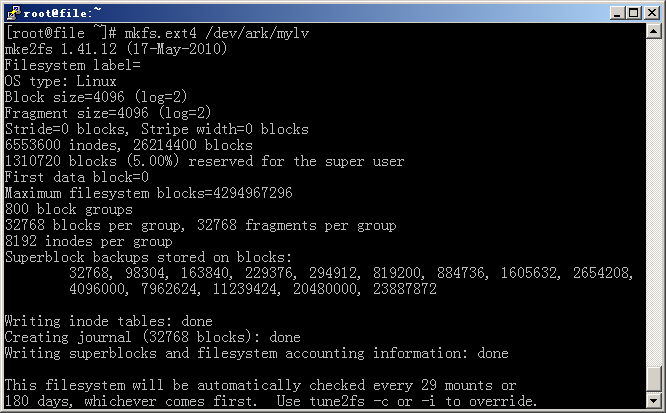
4:为创建好的逻辑卷创建文件系统
(如果逻辑卷较大的话,建议先使用screen
screen -S zhang
screen -r zhang)

#mkfs.ext4 /dev/ark/mylv

5:将格式化好的逻辑卷挂载使用
#mount /dev/ark/mylv /m

6:自动挂载
#vim /etc/fstab
-----------------
删除LVM
1:删除LV
#lvremove /dev/ark/mylv

2:删除VG
#vgremove ark

3:删除物理卷
#pvremove /dev/sdc /dev/sdd

------------------
LVM逻辑卷的拉伸与缩小

逻辑卷的拉伸可以在线执行,不需要卸载逻辑卷
1:保证VG中有足够的空闲空间
#vgs

2:扩充逻辑卷
#lvextend -L +1G /dev/ark/mylv
Extending logical volume mylv to 4.00 GiB
Logical volume mylv successfully resized

3:查看扩充后LV大小
#lvs

4:更新文件系统
#resize2fs /dev/ark/mylv

5:查看更新后文件系统
#df -h
------
拉伸一个卷组
1:将要添加到VG的硬盘格式化为PV
#pvcreate /dev/sde
2:将新的PV添加到指定卷组中
#vgextend ark /dev/sde
3:查看扩充后VG大小
#vgs
---------
缩小一个逻辑卷

逻辑卷的缩小必须离线执行,要卸载逻辑卷
1:卸载已挂载的逻辑卷
#umount /dev/ark/mylv
2:缩小文件系统 (会提示需要运行fsck检查文件系统)
#resize2fs /dev/ark/mylv 2G
Please run 'e2fsck -f /dev/ark/mylv' first.

#e2fsck -f /dev/ark/mylv'
#resize2fs /dev/ark/mylv 2G

3:缩小LV (缩小的LV必须小于等于缩小文件系统的大小,否则会损毁文件)
#lvreduce -L 2G /dev/ark/mylv

WARNING: Reducing active logical volume to 2.00 GiB
THIS MAY DESTROY YOUR DATA (filesystem etc.)
Do you really want to reduce mylv? [y/n]: y
Reducing logical volume mylv to 2.00 GiB
Logical volume mylv successfully resized

4:查看缩小后的LV
#lvs
5:挂载
#mount /dev/ark/mylv /m
------------
缩小卷组
1:将一个PV从指定卷组中移出 (要保证VG的空间要大于移走的物理卷)
#vgreduce ark /dev/sdc
Removed "/dev/sdc" from volume group "ark"
2:查看缩小后的卷组大小
#vgs
3:#pvs
pvs
PV VG Fmt Attr PSize PFree
/dev/sda2 VolGroup lvm2 a-- 19.51g 0
/dev/sdc lvm2 a-- 2.00g 2.00g
/dev/sdd ark lvm2 a-- 4.00g 2.00g

#pvremove /dev/sdc
Labels on physical volume "/dev/sdc" successfully wiped
4:可以移出硬盘/dev/sdc

LVM (1)

LVM (2)

LVM (3)

LVM (4)

LVM (5)

LVM (6)

LVM (7)

LVM (8)

LVM (9)

LVM (10)

LVM (11)

LVM (12)