CentOS6.x 更新系统默认Python版本带来的yum异常:File “/usr/bin/yum”, line 30

CentOS6.x 更新系统默认Python版本带来的yum异常:File "/usr/bin/yum", line 30

CentOS6.x 升级Python到 Python3.4.3,并更新系统默认Python版本,当使用yum安装或升级软件的时候提示下列错误

#yum update -y
File "/usr/bin/yum", line 30
except KeyboardInterrupt, e:
^
SyntaxError: invalid syntax

错误原因:

这是因为yum采用python作为命令解释器,这可以从/usr/bin/yum文件中第一行#!/usr/bin/python发现。而python版本之间兼容性不太好,使得2.6版本与3.4版本之间存在语法不一致问题。而CentOS 6自带的yum采用的是

python2.6.6,当系统将python升级到3.x后,出现语法解释错误。

解决办法:
修改yum的解释器为旧版本python2.6(如果你没有采用覆盖升级的话)。

#vi /usr/bin/yum
将第一行"#!/usr/bin/python" 改为 "#!/usr/bin/python2.6"即可。

yum_error

yum_error2

CentOS6.x下Python-Pip以及Python-gevent的安装使用

CentOS6.x下Python-Pip以及Python gevent的安装使用
CentOS6.5安装 gevent可以提高服务器的性能

Pip是安装Python包的工具,提供了安装、列举已安装包、升级以及卸载包的功能。Pip 是对easy_install的取代,提供了和easy_install相同的查找包的功能,因此可以使用easy_install安装的包也同样可以使用pip进行安装。
目前有很多Python程序都是可以直接通过Pip来一键安装了,比如众所周知的Django、Markdown、Shadowsocks等。
安装Pip之前必须要先安装setuptools,安装setuptools之前,必须要安装了Python,这之间的安装过程存在依赖关系,缺一不可。
1、检查Python版本
#python --version
CentOS6.5默认安装的Python版本是2.6.6,返回值为:Python 2.6.6
2、安装setuptools
#yum install -y python-setuptools
安装完毕后,easy_install命令就可以使用了。
3、安装pip //pip-8.0.2
#easy_install pip
通过easy_install安装pip是最为简单的方法。pip默认安装到/usr/bin目录下。
4、安装shadowsocks
#pip install shadowsocks
5、安装 gevent
安装 gevent可以提高 Shadowsocks 的性能。CentOS下安装gevent依赖libevent和greenlet。
安装libevent:
#yum install -y libevent

安装greenlet:
#yum groupinstall "Development Tools" -y
#pip install greenlet

安装gevent:
pip install gevent 或者easy_install gevent //error: Setup script exited with error: command 'gcc' failed with exit status 1 可能会报错

简要介绍一下Pip的用法(以安装gevent举例):
1、安装package
pip install gevent

2、列出已安装的packages
pip freeze

3、安装特定版本的package
pip install gevent==1.0.2
pip install gevent>=1.0.2,<=1.0.2

4、升级已安装的package到最新版本
pip install -U gevent

5、卸载已安装的package
pip uninstall gevent

6、查询已安装的package
pip search "gevent"

https://teddysun.com/339.html
DEPRECATION: Python 2.6 is no longer supported by the Python core team, please upgrade your Python. A future version of pip will drop support for Python 2.6


CentOS6.x 安装升级Python2.7.x Python3.4.x

CentOS 6.x下安装(RPM和编译)aria2

CentOS 6.x下安装(RPM和编译)aria2
aria2 是一款 Linux 下轻量级的多线程下载工具,支持Http/Https、Ftp、BitTorrent、Metalink协议。
官网地址:http://aria2.sourceforge.net ,首页有简略使用教程(Usage Examples)
repo 里没有 aria2 ,因此需要到 http://pkgs.repoforge.org/aria2/ 去下载 rpm 包安装即可。

CentOS 6.x 32 位下安装
wget -c http://pkgs.repoforge.org/aria2/aria2-1.16.4-1.el6.rf.i686.rpm
rpm -ivh aria2-1.16.4-1.el6.rf.i686.rpm

CentOS 6.x 64 位下安装
wget -c http://pkgs.repoforge.org/aria2/aria2-1.16.4-1.el6.rf.x86_64.rpm
rpm -ivh aria2-1.16.4-1.el6.rf.x86_64.rpm

在安装过程有可能会出现缺少 libnettle.so.4 的错误提示。
因此需要先到 http://pkgs.repoforge.org/nettle/ 去下载安装 nettle 即可。
CentOS 6.x 32 位下安装
wget -c http://pkgs.repoforge.org/nettle/nettle-2.2-1.el6.rf.i686.rpm
wget -c http://pkgs.repoforge.org/nettle/nettle-devel-2.2-1.el6.rf.i686.rpm
rpm -ivh nettle-2.2-1.el6.rf.i686.rpm
rpm -ivh nettle-devel-2.2-1.el6.rf.i686.rpm

CentOS 6.x 64 位下安装
wget -c http://pkgs.repoforge.org/nettle/nettle-2.2-1.el6.rf.x86_64.rpm
wget -c http://pkgs.repoforge.org/nettle/nettle-devel-2.2-1.el6.rf.x86_64.rpm
rpm -ivh nettle-2.2-1.el6.rf.x86_64.rpm
rpm -ivh nettle-devel-2.2-1.el6.rf.x86_64.rpm

编译安装aria2
wget http://iweb.dl.sourceforge.net/project/aria2/stable/aria2-1.19.0/aria2-1.19.0.tar.gz
tar zxvf aria2-1.19.0.tar.gz
cd aria2-1.19.0
./configure
make
make install

man aria2c //查看 aria2c manual

aria2c http://cachefly.cachefly.net/100mb.test && rm -f 100mb.test
aria2c -c http://a/f.iso ftp://b/f.iso //-c 选项可以断点续传文件
aria2c http://example.org/mylinux.torrent
aria2c 'BitTorrent Magnet URI' -d test/ //-d test/是指明下载文件保存在test目录
aria2c http://example.org/mylinux.metalink
aria2c -i uris.txt //Download URIs found in text file

完成

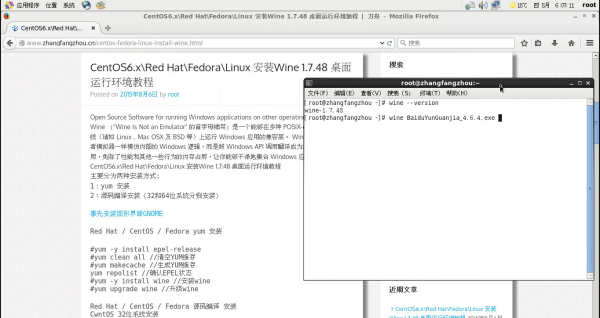
CentOS6.x\Red Hat\Fedora\Linux 安装Wine 1.7.48 桌面运行环境教程

Open Source Software for running Windows applications on other operating systems
Wine (“Wine Is Not an Emulator” 的首字母缩写)是一个能够在多种 POSIX-compliant 操作系统(诸如 Linux,Mac OSX 及 BSD 等)上运行 Windows 应用的兼容层。 Wine 不是像虚拟机或者模拟器一样模仿内部的 Windows 逻辑,而是將 Windows API 调用翻译成为动态的 POSIX 调用,免除了性能和其他一些行为的内存占用,让你能够干净地集合 Windows 应用到你的桌面。
CentOS6.x\Red Hat\Fedora\Linux 安装Wine 1.7.48 桌面运行环境教程
主要分为两种安装方式:
1:yum 安装
2:源码编译安装(32和64位系统分别安装)

事先安装图形界面GNOME

Red Hat / CentOS / Fedora yum 安装

#yum -y install epel-release
#yum clean all //清空YUM缓存
#yum makecache //生成YUM缓存
yum repolist //确认EPEL状态
#yum -y install wine //安装wine
#yum upgrade wine //升级wine

Red Hat / CentOS / Fedora 源码编译 安装
CwntOS 32位系统安装

#yum -y install wget gcc make vim screen bzip2-devel epel-release zlib-devel libxcb-devel
#yum groupinstall "Development tools" -y
#yum clean all //清空YUM缓存
#yum makecache //生成YUM缓存
#yum repolist //确认EPEL状态
#yum -y update
#reboot
#wget http://nchc.dl.sourceforge.net/project/wine/Source/wine-1.7.48.tar.bz2 //下载wine
#tar -jxvf wine-1.7.48.tar.bz2 //解压
#cd wine-1.7.48
#./configure

configure: error: X development files not found. Wine will be built
#yum -y install libX11-devel freetype-devel
#./configure //配置
#make //编译
#make install //安装
#wine xxx.exe //运行32位软件

CentOS 64位系统安装

#yum groupinstall "Development tools" -y
#yum -y install wget gcc make vim screen bzip2-devel epel-release zlib-devel libxcb-devel
#yum -y update
#reboot
#wget http://nchc.dl.sourceforge.net/project/wine/Source/wine-1.7.48.tar.bz2 //下载wine
#tar -jxvf wine-1.7.48.tar.bz2 //解压
#cd wine-1.7.48
#./configure

configure: error: Cannot build a 32-bit program, you need to install 32-bit development libraries.

#./configure --enable-win64 //配置
configure: Finished. Do 'make' to compile Wine.

configure: error: X development files not found. Wine will be built

#yum -y install libX11-devel
#./configure --enable-win64

configure: error: FreeType development files not found. Fonts will not be built.
Use the --without-freetype option if you really want this.
#yum -y install freetype-devel
#./configure --enable-win64
configure: Finished. Do 'make' to compile Wine.
#make //编译
Wine build complete.
#make install //安装
#wine64 xxx.exe //运行64位软件
完成

为CentOS 6.x安装图形界面GNOME、火狐浏览器并用TigerVNC 远程连接

为CentOS 6.6安装图形界面GNOME、火狐浏览器并用TigerVNC 远程连接
GNOME
易用性——设计和创建为所有人所用的桌面和应用程序
国际化——保证桌面和应用程序可以用于很多语言
火狐浏览器
Firefox 全球第三大流行的网页浏览器
VNC
VNC(Virtual Network Computing),为一种使用RFB协议的屏幕画面分享及远程操作软件


准备阶段:
#yum -y install wget gcc make vim screen epel-release
#yum clean all //清空YUM缓存
#yum makecache //生成YUM缓存
#yum repolist //确认EPEL状态
#yum -y update
#reboot

开始安装GNOME:
yum groupinstall "Development tools" -y
yum groupinstall "X Window System" "Desktop" "Chinese Support" "Fonts" -y

groupinstall "Desktop" #CentOS 6.x版本安装GNOME包
groupinstall "GNOME Desktop Environment" #CentOS 5.x版本安装GNOME包

开始安装配置TigerVNC Server:
yum -y install tigervnc-server

接下来设定VNC使用者进入后的环境,vim /etc/sysconfig/vncservers
下面是默认值,修改这里的用户和登入设定,他的值是 "索引号1:用户账号1 索引号2:用户账号2 索引号3:使用者账号3 ...."

索引值就是未来联机用的port号(5900+索引值),例如索引值2 (5900 + 2),所以到时连接 VNC Server 就使用 :5902
# VNCSERVERS="2:myusername"
# VNCSERVERARGS[2]="-geometry 800x600 -nolisten tcp -localhost"

多用户举例

VNCSERVERS="2:root 3:axer"
VNCSERVERARGS[2]="-geometry 1280x1024 -nolisten tcp -localhost"
VNCSERVERARGS[3]="-geometry 1280x1024"

单用户举例
VNCSERVERS="1:root"
VNCSERVERARGS[1]="-geometry 1360x768" //分辨率可以根据实际情况设置

用户必须是存在的

设定VNC的使用者密码
vnc的用户帐密和系统不同,需独立设定,使用指令 vncpasswd,切换到该用户下指令即可:

#vncpasswd
Password:
Verify:
你可能会忘记vnc的密码,只要把自己家目录中的 .vnc/passwd 档删掉然后重新执行 vncpasswd 即可。
#rm ~/.vnc/passwd

多用户务必设定后面中已指定的用户密码,否则在启动vnc会出现这样的错误:
3:axer
VNC password for user axer is not configured
[失败]
启动vnc/停止vnc
#service vncserver start | stop | restart

设定开机启动
#chkconfig --level 35 vncserver on

iptables防火墙
iptables -I INPUT -p tcp --dport 5901 -j ACCEPT
service iptables save
service iptables restart

其他

1. 如果启动时出现错误
正在启动 VNC 服务器:0:root A VNC server is already running as :0
这代表 /etc/sysconfig/vncservers 中有设定 "0"索引值,索引值得从1开始 VNCSERVERS="0:root 1:axer"

2. 查看正在开启的vnc server window
#vncserver -list

TigerVNC server sessions:

X DISPLAY # PROCESS ID
:1 6376
:2 6418

3. 强制关闭其中的显示,例如第2个
#vncserver -kill :2

vim /etc/inittab
id:3:initdefault //将3改为5,id:5:initdefault
系统启动,默认进入文字界面(默认为3);我们要让系统自动进入图形界面(数字5),所以把3改为5。

安装完毕后需要重新启动服务器

CentOS 7.x
#yum -y install wget gcc make vim screen epel-release
#yum clean all //清空YUM缓存
#yum makecache //生成YUM缓存
#yum repolist //确认EPEL状态
#yum -y update
#reboot

yum groupinstall "Development tools" -y
yum groupinstall "GNOME Desktop" -y

开始安装火狐浏览器:
yum -y install wget gcc make epel-release //更新yum源
yum -y install firefox //安装火狐浏览器

安装完毕后需要重新启动计算机或服务器

在CentOS6.x或CentOS7.x上安装EPEL Repo,Extra Packages for Enterprise Linux (EPEL)

CentOS6.x 安装升级Python2.7.x Python3.4.x

CentOS release 6.6 (Final) 安装升级Python2.7.7 Python2.7.9 Python3.4.3

1、查看当前系统中的python版本
#python --version 或 python -V
Python 2.6.6

2、检查CentOS版本
#cat /etc/redhat-release

3、安装所有的开发工具包
#yum groupinstall "Development tools" -y

4、安装其它的必需包
#yum install zlib-devel bzip2-devel openssl-devel ncurses-devel -y

5、下载、编译和安装Python2.7.7
cd /opt
wget https://www.python.org/ftp/python/2.7.7/Python-2.7.7.tgz
tar zxvf Python-2.7.7.tgz
cd Python-2.7.7
./configure
make install

5、下载、编译和安装Python3.4.3
cd /opt
wget https://www.python.org/ftp/python/3.4.3/Python-3.4.3.tgz
tar zxvf Python-3.4.3.tgz
cd Python-3.4.3
./configure
make install

6、查看Python版本。
用以下命令查看Python2.7是否已安装

#python2.7 --version
Python 2.7.7

用以下命令查看Python3.4是否已安装
#python3.4 --version
Python 3.4.3

7、更新系统默认Python和python-config版本(可选)
没必要的话最好不进行这项操作(可能会产生关联错误),建议使用python2 或者python3 代替。
先查找python的位置
#whereis python
python: /usr/bin/python2.6-config /usr/bin/python /usr/bin/python2.6 /usr/lib/python2.6 /usr/lib64/python2.6 /usr/local/bin/python3.4m
/usr/local/bin/python3.4-config /usr/local/bin/python3.4 /usr/local/bin/python3.4m-config /usr/local/lib/python3.4 /usr/include/python2.6
/usr/share/man/man1/python.1.gz

cd /usr/bin
rm python
rm python-config
ln -s /usr/local/bin/python3.4 /usr/bin/python //创建一个软连接
ln -s /usr/local/bin/python3.4m-config /usr/bin/python-config //创建一个软连接

#python --version
Python 3.4.3
reboot

8、安装和配置发行包(可选)
cd /opt
wget http://pypi.python.org/packages/source/d/distribute/distribute-0.6.27.tar.gz
tar xf distribute-0.6.27.tar.gz
cd distribute-0.6.27
python2.7 setup.py install

完成

在CentOS 6.x或7.x上安装RepoForge Repo


在CentOS 6.x或7.x上安装RepoForge Repo
RepoForge is the new RPMforge.
The RepoForge project maintains RPM packages for: * Red Hat Enterprise Linux (RHEL) * CentOS * Scientific Linux

$ cat /etc/issue
$ uname -a
$ yum install yum* //为了安装yum-config-manager

Import Repoforge GPG key
Next, import the Repoforge RPM repository's official GPG key. That way, you will be able to validate all the RPM packages from the

repository using the key.
$ sudo rpm --import http://apt.sw.be/RPM-GPG-KEY.dag.txt //导入GPG key

After running the above command, verify that the key has been imported successfully with:
$ yum-config-manager rpmforge | grep gpgkey
gpgkey = file:///etc/pki/rpm-gpg/RPM-GPG-KEY-rpmforge-dag //检查GPG key

Without importing the key in this step, you will see the following warning when you attempt to install a Repoforge RPM file later.
warning: /var/tmp/rpm-tmp.rHqPLd: Header V3 DSA/SHA1 Signature, key ID 6b8d79e6: NOKEY //不导入GPG key会提示这样的错误信息

CentOS 6.x
32位
sudo rpm -Uvh http://pkgs.repoforge.org/rpmforge-release/rpmforge-release-0.5.3-1.el6.rf.i686.rpm
64位
sudo rpm -Uvh http://pkgs.repoforge.org/rpmforge-release/rpmforge-release-0.5.3-1.el6.rf.x86_64.rpm

CentOS 7.x
64位
sudo rpm -Uvh http://pkgs.repoforge.org/rpmforge-release/rpmforge-release-0.5.3-1.el7.rf.x86_64.rpm

Verify Repoforge Repository Status
Once Repoforge is installed on your system, you can verify its status by running:
$ yum repolist //确认Repoforge Repository状态
0 packages excluded due to repository protections
repo id repo name status
base CentOS-6 - Base 6518
epel Extra Packages for Enterprise Linux 6 - x86_64 11365
extras CentOS-6 - Extras 37
rpmforge RHEL 6 - RPMforge.net - dag 4718
updates CentOS-6 - Updates 946
repolist: 23584

In general, it is not a good idea to keep Repoforge enabled as it could potentially cause conflicts with other third-party packages such as EPEL

$ sudo yum-config-manager --disable rpmforge //禁用Repoforge Repository
If successful, the subsequent output should display "enabled=0".

sudo yum-config-manager --enable rpmforge //启用Repoforge Repository
If successful, the subsequent output should display "enabled=1".

Now if you want to install any package from Repoforge repository, use the following command.
$ sudo yum --enablerepo=rpmforge install [package-name] //或者只安装指定包
完成

在CentOS6.x或CentOS7.x上安装EPEL Repo,Extra Packages for Enterprise Linux (EPEL)

在CentOS6.x或CentOS7.x上安装EPEL Repo,Extra Packages for Enterprise Linux (EPEL)
Error: Cannot retrieve metalink for repository: epel. Please verify its path and try again
Repo
repository,资源库,源的意思。RHEL EPEL(Extra Packages for Enterprise Linux) Repo是Linux发行版中最大的软件仓库之一,免费,丰富的软件包更新。

介绍:
http://fedoraproject.org/wiki/EPEL
Support Red Hat Enterprise Linux (RHEL), CentOS and Scientific Linux (SL), Oracle Linux (OL).

安装步骤:
CentOS 6.x
sudo rpm --import http://dl.fedoraproject.org/pub/epel/RPM-GPG-KEY-EPEL-6 //导入GPG key
yum-config-manager epel | grep gpgkey
gpgkey = /etc/pki/rpm-gpg/RPM-GPG-KEY-EPEL-6 //检查GPG key
sudo rpm -Uvh http://dl.fedoraproject.org/pub/epel/epel-release-latest-6.noarch.rpm //安装

CentOS 7.x

sudo rpm --import http://dl.fedoraproject.org/pub/epel/RPM-GPG-KEY-EPEL-7 //导入GPG key
yum-config-manager epel | grep gpgkey
gpgkey = /etc/pki/rpm-gpg/RPM-GPG-KEY-EPEL-7 //检查GPG key
sudo rpm -Uvh http://dl.fedoraproject.org/pub/epel/epel-release-latest-7.noarch.rpm //安装

或者
yum install epel-release -y

NOTE for CentOS users
You can install EPEL by running yum install epel-release. The package is included in the CentOS Extras repository, enabled by default.

可能出现的问题:
运行yum报错:
Error: Cannot retrieve metalink for repository: epel. Please verify its path and try again

解决办法:
vim /etc/yum.repos.d/epel.repo
编辑[epel]下的baseurl前的#号去掉,mirrorlist前添加#号。
正确配置如下:
[epel]
name=Extra Packages for Enterprise Linux 6 - $basearch
baseurl=http://download.fedoraproject.org/pub/epel/6/$basearch
#mirrorlist=https://mirrors.fedoraproject.org/metalink?repo=epel-6&arch=$basearch
failovermethod=priority
enabled=1
gpgcheck=1
gpgkey=file:///etc/pki/rpm-gpg/RPM-GPG-KEY-EPEL-6

再运行
yum clean all
yum makecache

yum repolist //确认EPEL状态
repo id repo name status
base CentOS-6 - Base 6518
epel Extra Packages for Enterprise Linux 6 - x86_64 11628
extras CentOS-6 - Extras 38
rpmforge RHEL 6 - RPMforge.net - dag 245
updates CentOS-6 - Updates 1199
repolist: 19628
完成
另外:有的时候EPEL需要手动开启
yum install yum* //为了安装yum-config-manager
或者
yum install yum-utils.noarch

sudo yum-config-manager --enable epel //开启EPEL Repository,有的时候无法自动开启
或者
sudo yum-config-manager --enable epel*
epel Extra Packages for Enterprise Linux 6 - x86_64 11,746
epel-debuginfo Extra Packages for Enterprise Linux 6 - x86_64 - D 2,207
epel-source Extra Packages for Enterprise Linux 6 - x86_64 - S 0
epel-testing Extra Packages for Enterprise Linux 6 - Testing - 950
epel-testing-debuginfo Extra Packages for Enterprise Linux 6 - Testing - 78
epel-testing-source Extra Packages for Enterprise Linux 6 - Testing - 0