VPS 重启后自动发送邮件

VPS 重启后自动发送邮件
1:yum -y install sendmail
2:检测是否能正常发送邮件 SMTP
netstat -ant (查看是否开放25号端口)
3:touch 1.sh
vi 1.sh
管理员邮箱root@zhangfangzhou.cn
---------------------------------
#!/bin/sh
sendmail -t >/dev/null 2>&1 <<EOF
to:admin@qq.com
from:root@seafile.com
subject:Your server is restarted.

Your server is restarted.
$(ifconfig eth0 |awk '/inet addr/{gsub(/addr:/,"");print $2}')
$(date +%Y/%m/%d/%H:%M:%S-%A)
EOF
---------------------------------
获取IP地址
#ifconfig 查看网卡编号(eth0,venet0:0) (文件位置:/etc/sysconfig/network-scripts)
#ls /etc/sysconfig/network-scripts
ifcfg-lo
ifcfg-venet0
ifcfg-venet0:0
ifcfg-venet0:1

#ifconfig eth0 |awk '/inet addr/{gsub(/addr:/,"");print $2}'
eth0: error fetching interface information: Device not found
#ifconfig venet0:0 |awk '/inet addr/{gsub(/addr:/,"");print $2}'
107.181.152.32

4:chmod 777 1.sh
5:vi /etc/rc.local #自启动项
6:添加/root/1.sh

Change Hostname in CentOS 6.5/7

Change Hostname in CentOS 6.5/7

CentOS 6.5

[1] Change hostname with a commnad (but if rebooting, it will be back).

[root@vpsmate ~]# hostname              # show current hostname
srv1.vpsmate.net
[root@vpsmate ~]# hostname srv2.vpsmate.net         # change hostname
[root@vpsmate ~]# hostname
srv2.vpsmate.net
[2] Change hostname permanently.

[root@vpsmate ~]# vi /etc/sysconfig/network     # change
HOSTNAME=srv2.vpsmate.net
[root@vpsmate ~]# exit
CentOS release 6.5
Kernel xxx
srv2.vpsmate.net login:                 # changed

CentOS 7

[1]Change hostname with a commnad (but if rebooting, it will be back).

[root@vpsmate ~]# hostname                  # show current hostname
srv1.vpsmate.net
[root@vpsmate ~]# hostname srv2.vpsmate.net         # change hostname
[root@vpsmate ~]# hostname
srv2.vpsmate.net
[2] Change hostname permanently.

view source
[root@vpsmate ~]# vi /etc/hostname          # change
srv1.vpsmate.net
[root@vpsmate ~]# exit
CentOS Linux 7
Kernel 3.10.0-123.4.2.el7.x86_64 on an x86_64
srv1 login:                         # just changed
 

CentOS 多网卡配置,网卡重命名

CentOS 多网卡配置
1:添加一块或多块网卡     
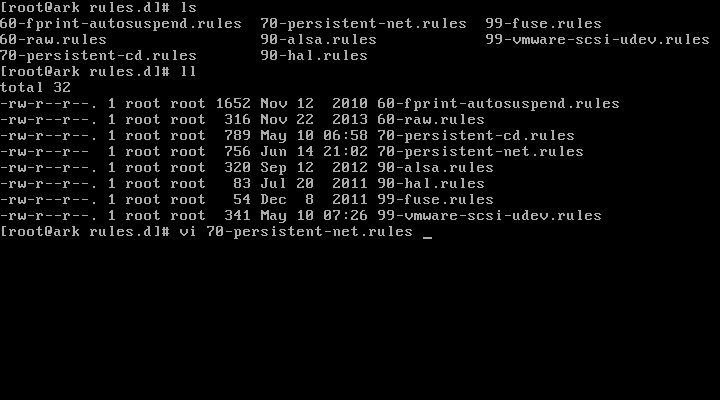
2:cd /etc/udev/rules.d/
3:cat 70-persistent-net.rules  #查看网卡的名称 NAME="eth1",并记录MAC等信息。
4:cd /etc/sysconfig/network-scripts
5:cp ifcfg-eth0 ifcfg-eth1
6:vi ifcfg-eth1
7:修改DEVICE=eth0 ,修改HWADDR
8:nmcli con  查看网卡UUID,并修改原来的,或者注释掉UUID  (#UUID)
9:reboot


CentOS 网卡重命名
eth0 rename4

1:cd /etc/sysconfig/network-scripts
2:vi ifcfg-eth1
3:修改DEVICE=eth1
4:cd /etc/udev/rules.d/
5:70-persistent-net.rules  #存储网卡标识
6:vi 70-persistent-net.rules  #编辑
7:reboot

CentOS ETH (1)

CentOS ETH (2)

CentOS ETH (3)

CentOS ETH (4)

CentOS安装nmap端口查看工具

nmap即(Network Mapper),是linux系统中一个常用的网络管理工具,可以扫描端口、嗅探主机所在的网络环境等。
一、安装nmap
#yum -y install nmap
二、使用nmap
#nmap localhost    #查看主机当前开放的端口
#nmap -p 20-65535 localhost    #查看主机端口(20-65535)中开放的端口
#nmap -PS 107.161.19.25       #探测目标主机开放的端口
#nmap --help  #更多nmap参数请查询帮助信息
三、关闭或者打开主机端口
1、nmap localhost    #查看主机当前开放端口
2、ntsysv            #打开系统服务器管理器(需要先安装yum install ntsysv),选择要关闭或者打开的服务

中文参考指南:http://nmap.org/man/zh/

NMAP

CentOS禁止和打开Ping请求

CentOS禁止和打开Ping请求
打开终端,或通过SSH连接,运行以下命令以禁止Ping请求:
#sysctl -w net.ipv4.icmp_echo_ignore_all=1
#sysctl -p

开启Ping请求:
#sysctl -w net.ipv4.icmp_echo_ignore_all=0
#sysctl -p

0表示允许
1表示禁止

CentOS 重启后失效
Forbidden ping (1) Forbidden ping (2) Forbidden ping (3) Forbidden ping (4) Forbidden ping (5)

CentOS 安装 VMware Tools

CentOS 6.5 安装 VMware Tools

init 3(完全多用户模式)
点击 VMware "安装VMware Tools”,再执行下面命令
1   yum -y install perl
    mkdir /mnt/cdrom
    mount -t auto /dev/cdrom /mnt/cdrom
    cd /mnt/cdrom
2  #将该软件包拷贝到LINUX的 TMP目录下
   cp *.tar.gz /tmp 
   或者cp VMwareTools-****.tar.gz /tmp   (****不同版本的VMware不一样)  
3  #卸载CDROM
   umount /dev/cdrom  
4  #进入TMP目录 
   cd /tmp 
5  #解压缩该软件包
   tar -xzvf *.tar.gz 
   或者tar -xzvf VMwareTools-****.tar.gz    (****不同版本的VMware不一样)
6  cd vmware-tools-distrib
7  ./vmware-install.pl  (安装)
8   #安装过程一路Enter下去
9   启用 VMware Tools 
    /etc/vmware-tools/services.sh start   (启动服务)
    /etc/vmware-tools/services.sh restart (重启服务)
安装完成 

centos